Viewing Transaction Logs
The Transaction Log option in the View Reservation screen includes the details of the logs that get created whenever the user performs one of the following actions in a reservation record:
-
Checking in the guest
-
Checking out the guest
-
Creating a reservation
-
Assigning a room
-
Changing the room
-
Modifying the reservation
-
Creating shared accommodation
-
Sending emails and SMS to the guest
Perform the following steps to view the transaction logs:
Navigate to Reservations à Reservations List.
Search for a reservation record using the confirmation number or any other search criteria. The matching records are displayed in the grid.
Click on the reservation confirmation number. The View Reservation screen appears.
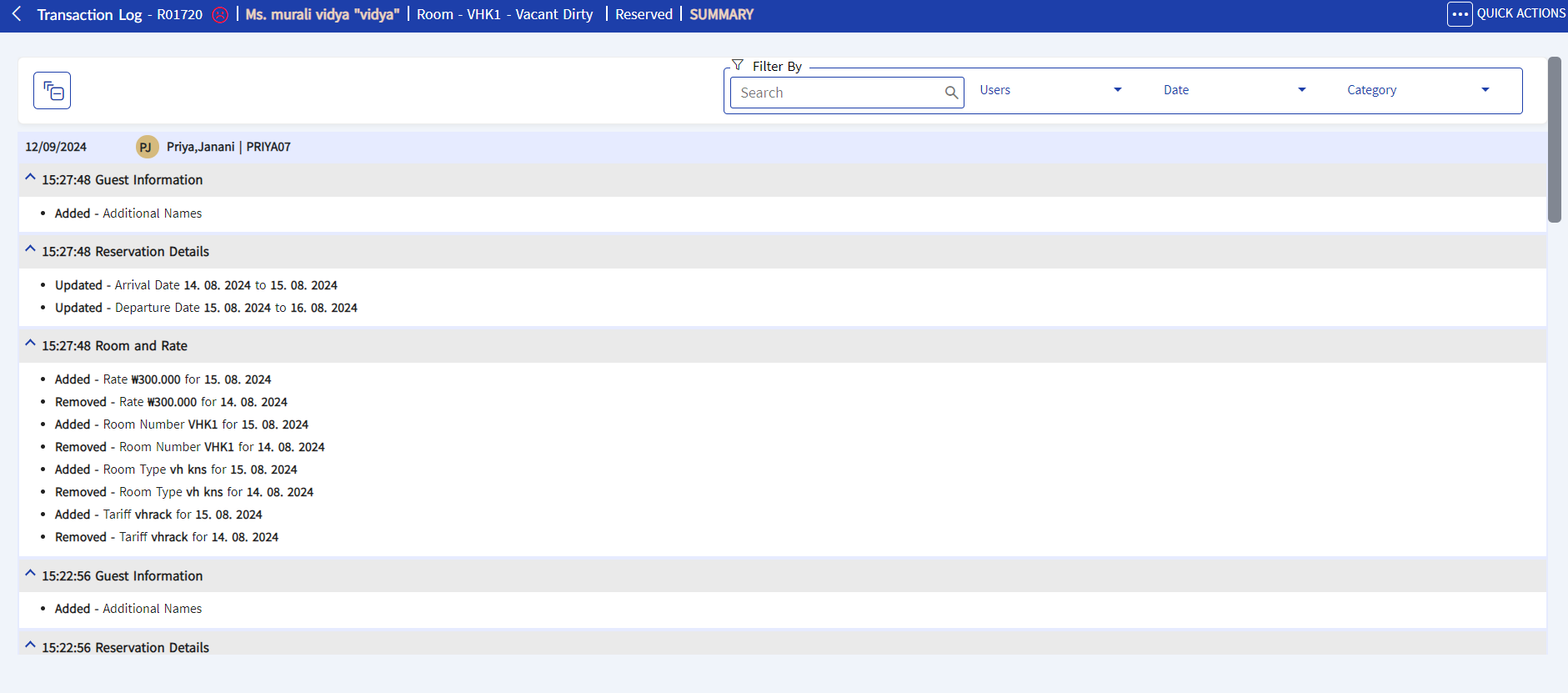
Click Transaction Log in the right pane. The Transaction Log screen appears.
Users can filter the log information displayed in the Transaction Log screen using the following options:
-
A search bar that allows users to search for specific log entries.
-
Users - A drop-down list consisting of all the users who created and modified the reservation. Multiple or all users can be selected from the drop-down list.
-
Date - A drop-down list consisting of all the dates on which the information was logged. Multiple or all dates can be selected from the drop-down list.
-
Category - A drop-down list consisting of all categories under which the information was logged. Multiple or all categories can be selected from the drop-down list. The available categories include:
-
Guest Information
-
Reservation Details
-
Room and Rate
-
Stay Information
-
Notification Information
-
Special Request
-
Payment Information
-
Alerts
-
Oversell Room Type
-
Any information logged for the reservation will be displayed under its respective categories. Users can also collapse and hide the log information and view only the categories by clicking on the collapse icon.
In addition, the user can navigate to other screens by clicking Quick Actions and perform functions that are part of the reservation process.